

Medi

One calm workspace for your whole hospital.

One web panel for patients, visits, admissions, lab orders and expenses. Register a patient once, then follow them through visits, stays and lab results, with each role seeing only what it needs.

Hospital management
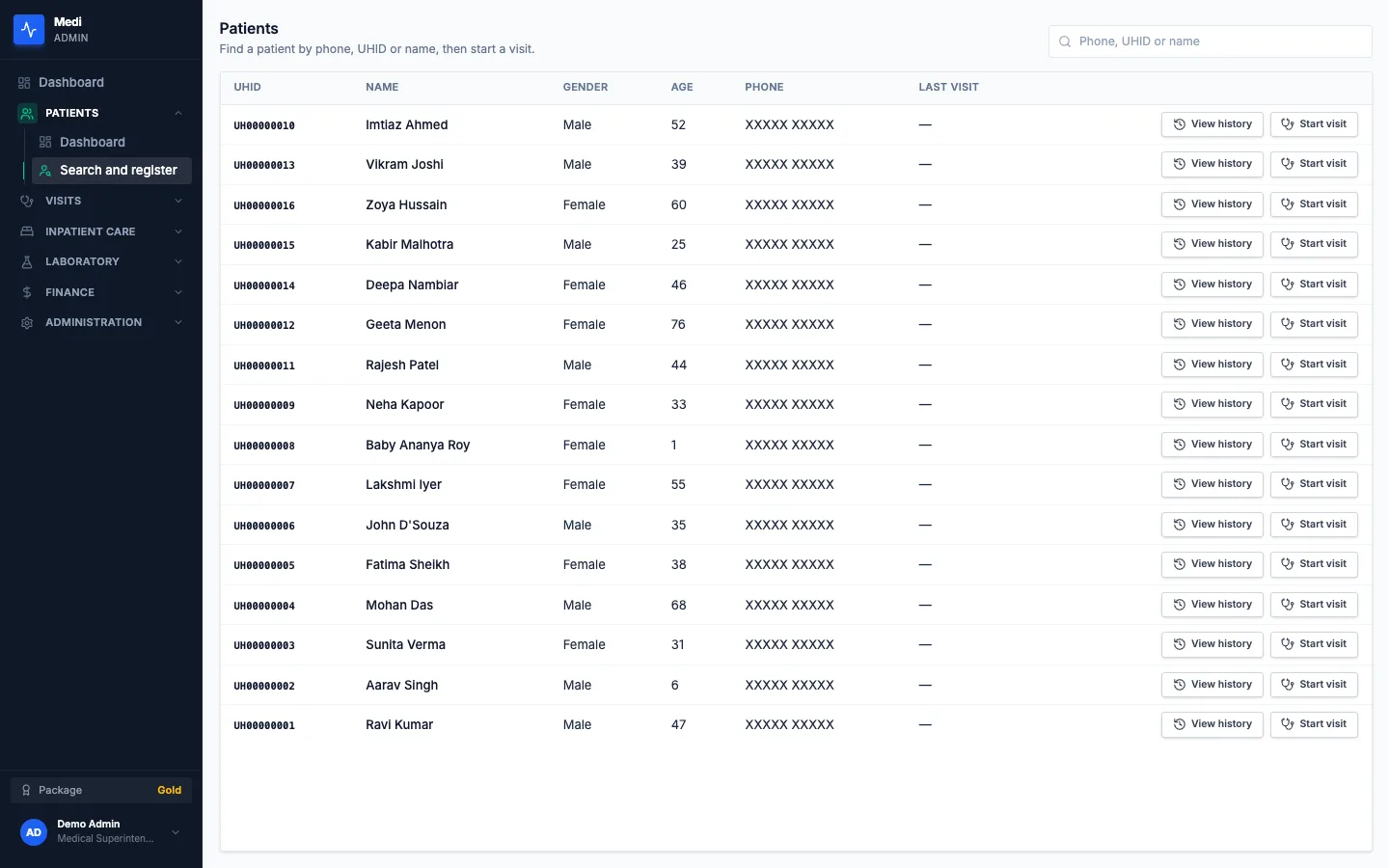
Medi Patients screen with a search box and a table of patients with View history and Start visit buttons
Platform
Web admin panel
Built for
Clinics and hospitals: superintendents, doctors, receptionists, nurses, lab technicians and the staff who track expenses
Works on
A web browser
Signs in with
A hospital ID, a username and a password

Overview

Medi, in plain words.

Medi is a web panel for running a clinic or a hospital. Reception registers patients, doctors record consultations, nurses look after admitted patients, the lab works through its orders and the superintendent sees how the hospital is run, all from one patient record.

A patient is registered once and given a hospital health ID, the UHID. From then on, every visit, admission and lab order is attached to that patient, so nobody re-enters a name or a phone number, and the patient's history reads as one timeline of outpatient visits, inpatient and day-care stays and lab reports.

Medi also keeps the hospital's own lists: the doctors and their departments, the price list of services, admission add-ons and care packages, the lab tests, and the expenses that need approval. Each hospital signs in with its own ID and works on its own data, and each staff member sees only what their role allows, which can be narrowed to their own patients, a department or a ward.

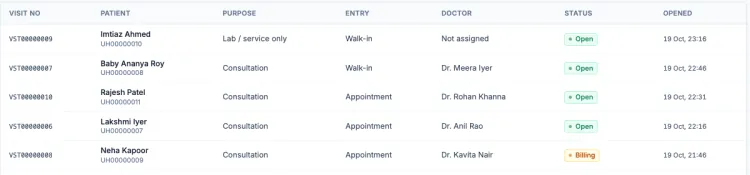
Visits table with visit number, patient, purpose, entry, doctor, status and opening time
Visits, with their purpose, entry, doctor and status. See the full screen
  • One patient record.

    A patient is registered once. Visits, admissions, lab orders and the history all hang from that one record.

  • Today first.

    Lists open on what changed today, with search always above them. When nothing changed today they show the latest records instead of an empty screen.

  • A visit has steps.

    A visit moves through department and doctor, consultation, services, lab tests and a summary, and a stepper shows which of them are done.

  • Access follows the person.

    Each user has a role, and a role can be limited to own patients, a department or a ward. A screen that a role cannot use is not offered in its menu.

Words used in Medi

Hospital ID
The code that identifies your hospital at sign-in. The sign-in screen calls it Tenant ID. Each hospital keeps its own data under its own ID.
UHID
The hospital health ID given to a patient at registration, for example UH followed by digits. It is a number inside your hospital, not a national health ID.
Visit
One occasion when a patient is seen. It is either a consultation, which needs a department and a doctor, or a lab or service only visit.
Part I services
The everyday services priced in the catalog, such as a dressing or an ECG, that can be added to a visit.
Part II plan
An optional choice on a visit: an admission or a day-care care package. A visit has none or one.
Day-care
A same-day stay, usually under a care package, for a patient who goes home that day.
Scope
A limit on a permission: own patients, a department, a ward, or specific users or patients.
Role
A named set of permissions, such as Doctor or Receptionist. Roles can be created and edited.

Highlights

Three things Medi does well.

  • Patients

    Register a patient once, get a hospital health ID, and find anyone by phone, UHID or name.

  • Visits and consultations

    One visit flow, from department and doctor through consultation, services and lab tests to a summary.

  • Roles and permissions

    Create roles, set what each permission covers, and limit access to own patients, a department or a ward.

Scope

What Medi is, and what it isn't.

What Medi is

  • A web panel for clinics and hospitals, used in a browser.
  • One patient record that visits, admissions and lab orders attach to.
  • Each hospital signs in with its own ID and works on its own data.
  • Access is governed by roles and scoped permissions, for example a doctor sees their own patients.

What it isn't

  • Not a medical device or diagnostic tool: Medi does not interpret results.
  • Not a substitute for clinical judgement.
  • Not a patient-facing app: it is used by hospital staff.
  • Not an invoicing or payments system today: a visit ends with an order summary and a total.

A working day

A day at the hospital.

  1. Sign in and look at the day

    Staff sign in with the hospital ID, a username and a password, and land on the screens their role allows.

  2. Find or register the patient

    Reception searches by phone, UHID or name, and registers the patient if they are new.

  3. Start the visit

    A consultation or a lab visit is opened for a booked appointment or a walk-in, with the department and doctor chosen for a consultation.

  4. See the doctor

    The doctor records vitals, notes, diagnoses and prescriptions, and signs the consultation.

  5. Order and admit

    Services, lab tests and, if needed, an admission or a day-care package are added to the visit. The lab collects samples and enters results, and ward staff add notes to admitted patients.

  6. Close the visit and the day

    The order summary is confirmed and the visit is closed. Patients who are ready to go home are discharged, and the expenses recorded during the day are approved or rejected.

From registration to a visit

From the front desk to the doctor.

Most of this happens at the front desk and in the consulting room. Each step is saved, so a visit can be put down and picked up again.

  1. Search first

    On Patients, type at least three characters of a name, a phone number or a UHID. If the patient is already there, open their history or start a visit from the same row.

  2. Register if new

    Registration asks for the full name, gender, date of birth or an approximate age, a phone number, and an ID type and number. An alternate phone, email, address, blood group and a guardian name can be added. The panel issues the UHID.

  3. Start the visit

    On New visit, find the patient, choose Consultation or Lab / service only, and say how the patient arrives: with a booked appointment for today, or as a walk-in. A free slot can also be booked from this screen.

  4. Choose department and doctor

    A consultation needs a department and a doctor from the directory, and the doctor's fee is used on the order. A lab or service only visit skips this step and the consultation.

  5. Record the consultation

    The doctor records vitals, notes, a diagnosis and prescription rows, then signs. Once signed, later changes are kept as addenda.

  6. Add services and lab tests

    Pick the Part I services, optionally an admission or a care package, and any lab tests. The panel adds up the order as you go.

Patients title and search box above a table with UHID, name, gender, age, phone and the View history and Start visit buttons
Patient search: by phone, UHID or name, with the next step on every row. See the full screen
The patient header of an open visit above the five visit steps: Department and doctor, Consultation, Services, Lab tests and Summary
The five steps of a visit, with the finished ones ticked. See the full screen

How a lab order moves

From a test ordered to a result entered.

A lab order is created inside a visit and then moves through four statuses on the lab worklist.

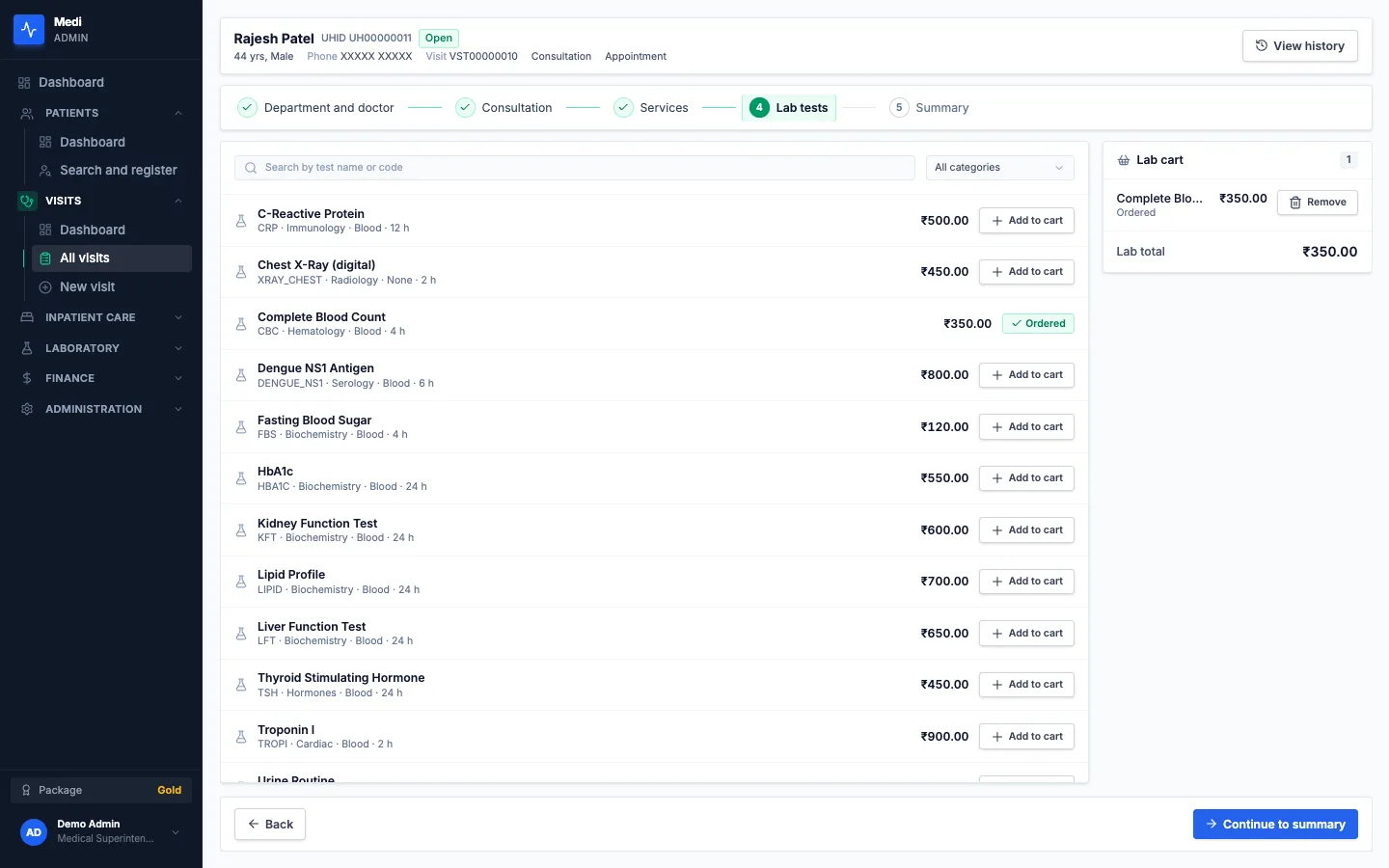
  1. Order the tests

    On the Lab tests step of a visit, search the test catalog by name or code, filter by category and add tests to the lab cart. The cart shows what was ordered and the lab total, and a test can be removed from it.

  2. Watch the queue

    New orders appear on the lab worklist as Ordered. Tabs show All, Ordered, Sample collected, In progress and Resulted, and the list can be filtered by patient or by order date.

  3. Collect the sample

    Opening an order shows its tests. On an Ordered order, Collect sample moves it on to Sample collected.

  4. Enter results

    For each test the technician enters a value, a unit, a reference range, a flag and remarks. The flag is chosen by the person entering the result: Medi does not decide whether a value is normal.

  5. Read the result

    A resulted order shows each value with its flag and reference range, and appears on the patient's history as a lab report.

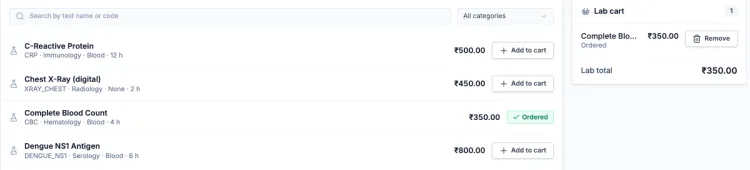
Lab test search and rows with code, category, sample type, price and an Add to cart button, beside a lab cart with its total
Lab tests with their prices, and the cart that collects an order. See the full screen
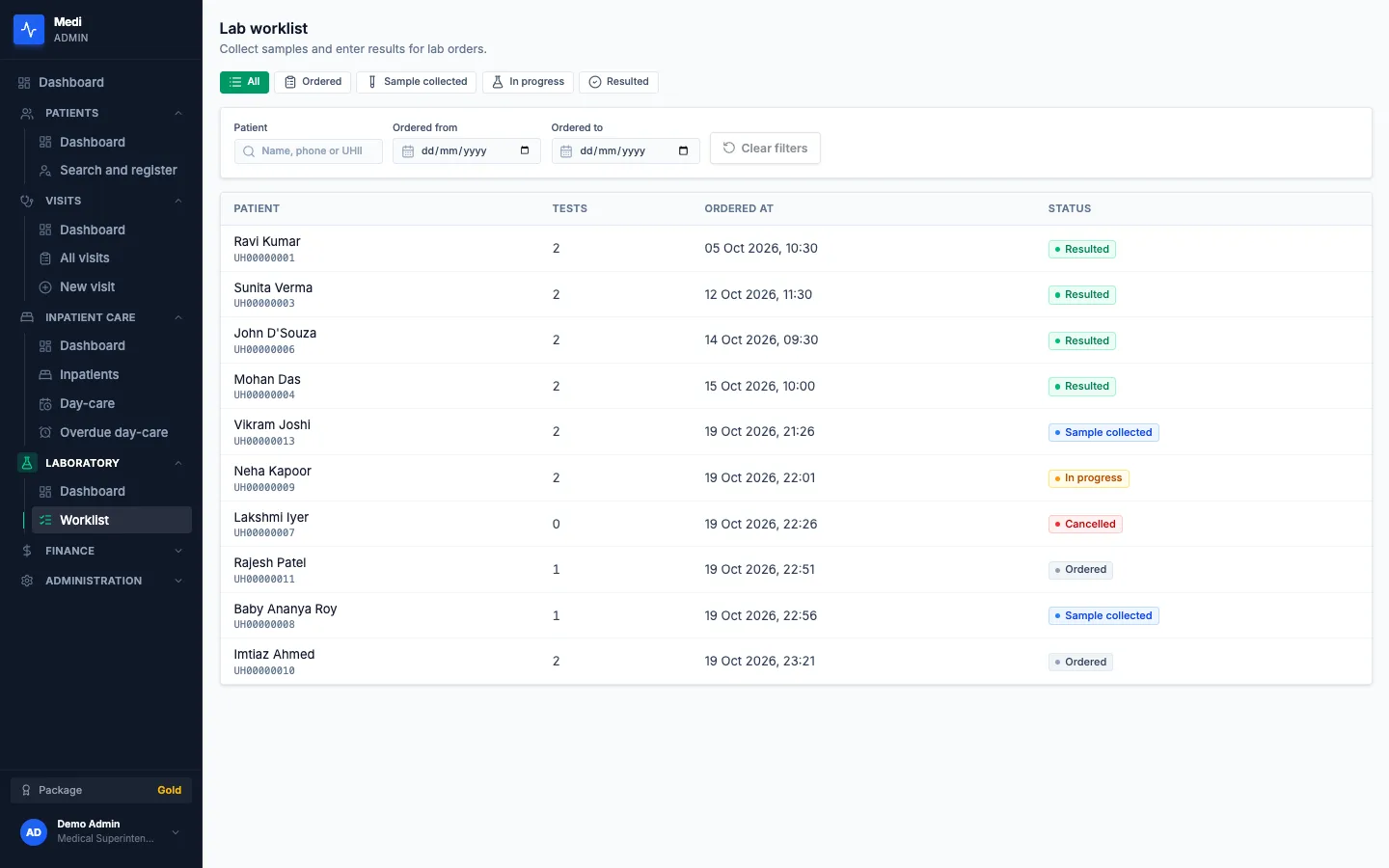
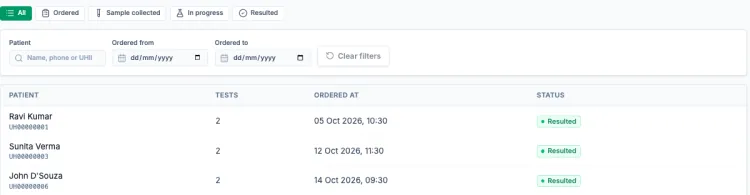
Lab worklist status tabs and filters above a table of patients, tests, order time and status
The lab worklist: status tabs, filters and orders with their status. See the full screen

Admissions and discharge

From admission to discharge.

An admission is an inpatient stay or a same-day day-care stay. It starts from a visit and is followed on the Admissions screens.

  1. Admit from a visit

    On the Services step, choosing an admission or a care package as the Part II plan offers Admit now. It asks for the department, the attending doctor and the reason, and for an inpatient a ward and a bed, typed in as text.

  2. Follow the stay

    Opening an admission shows the patient, doctor, department, ward and bed, and a day-by-day stay timeline of vitals, notes and services.

  3. Add notes and services

    Add note records a note on the stay, and Add service charges an item from the catalog to it.

  4. Move the patient

    Transfer changes the ward, bed, department or attending doctor, and asks for a reason.

  5. Turn day-care into an inpatient stay

    A day-care stay that needs to continue can be converted to an inpatient admission, with a reason and optionally a ward and a bed.

  6. Discharge

    Discharge asks for the discharging doctor's name and the date and time, and has fields for a brief note, the final diagnosis, the course in hospital, the condition at discharge, procedures, medications and follow-up.

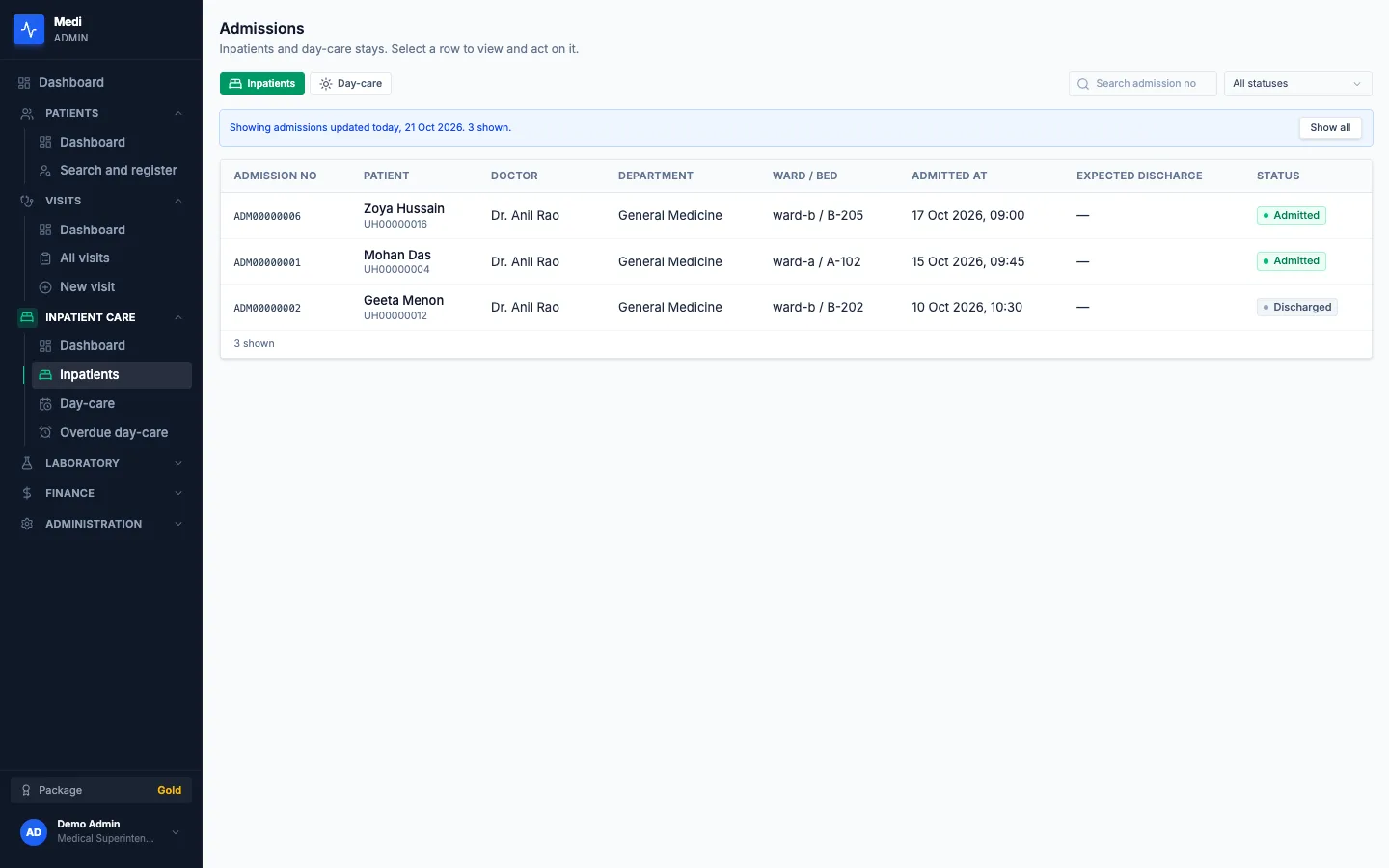
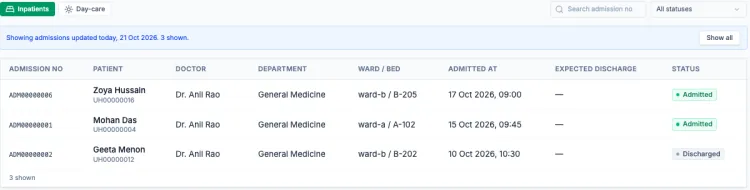
Admissions with Inpatients and Day-care tabs, and a table of admission number, patient, doctor, department, ward and bed, and status
Admissions, with ward and bed and the status of each stay. See the full screen

Screen by screen

How Medi looks, and what you do on each screen.

Real screens from the panel, shown with sample people and figures, so the pictures show the layout rather than a real hospital. Phone numbers are masked, and screens with clinical notes or results are left out. Each screen comes with a plain description, what you can do there and why it matters.

Sign in

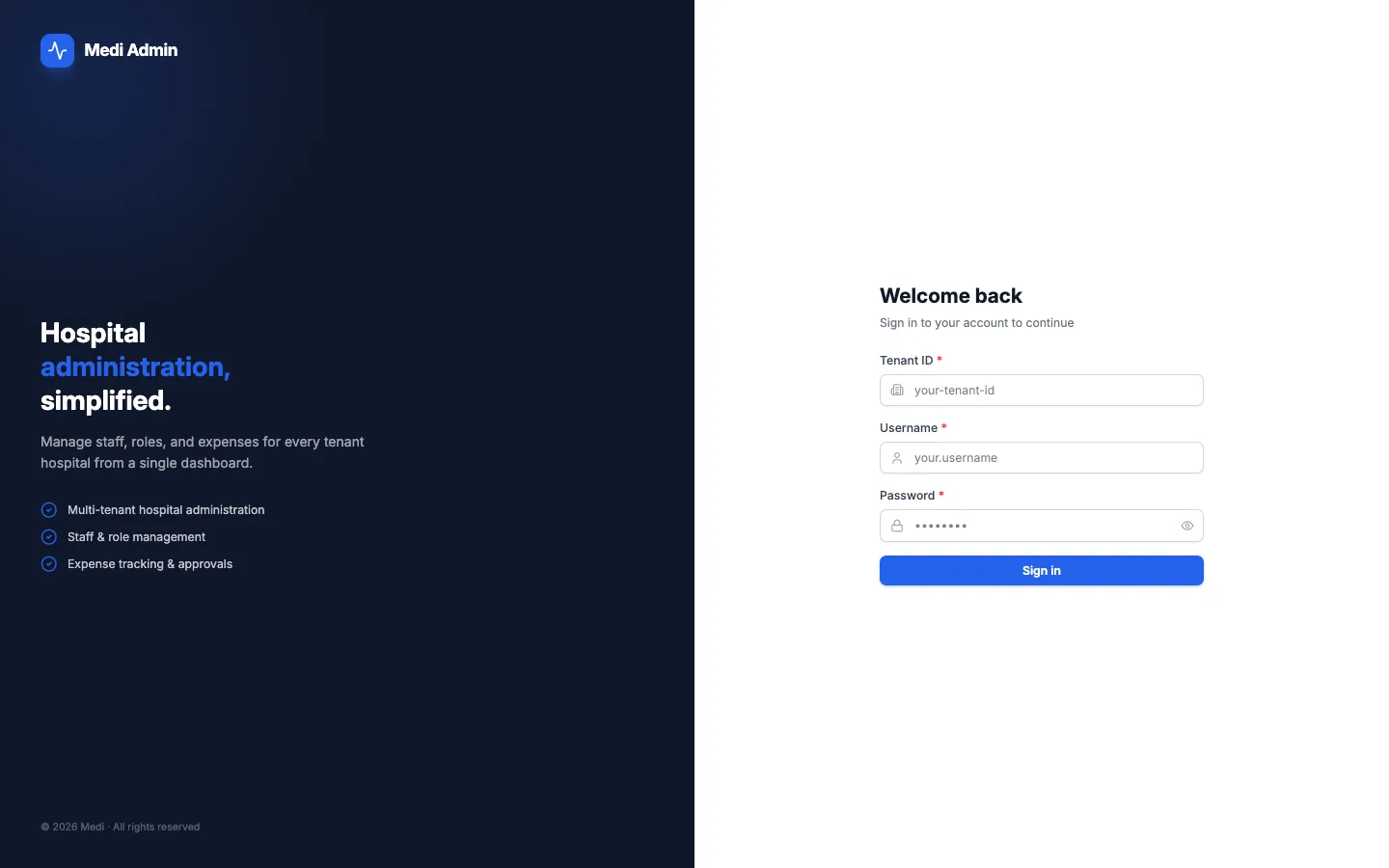
Medi sign-in screen with Tenant ID, Username and Password fields
Sign in

What you see

The screen is split in two. On the left, a dark panel carries the Medi Admin mark, the headline Hospital administration, simplified, a short line of explanation and three ticked points. On the right, a white panel reads Welcome back and asks for three things: a Tenant ID, a Username and a Password with an eye control to show it. A wide blue Sign in button sits below the fields.

What you can do

  • Enter the hospital ID in the Tenant ID field, then your username and password.
  • Use the eye control to check the password while typing.
  • Press Sign in. Staff land on the screens their role allows.

Why it matters. Every hospital signs in with its own ID and works on its own data, and each person then sees only what their role allows.
Patients

Medi Patients screen with a search box and a table of patients with View history and Start visit buttons
Patients

What you see

A dark menu runs down the left with the sections Patients, Visits, Inpatient care, Laboratory, Finance and Administration, and the Patients section is open. The page is titled Patients, with the line Find a patient by phone, UHID or name, then start a visit, and a search box at the top right. A table lists each patient by UHID, name, gender, age, phone and last visit. The phone column is masked in these captures. Every row ends with two buttons, View history and Start visit.

What you can do

  • Type at least three characters of a name, a phone number or a UHID to search.
  • Press View history to open the patient's timeline.
  • Press Start visit to begin a visit for that patient.
  • Open Search and register in the Patients menu to find a patient before starting a visit.

Why it matters. Finding the patient first avoids duplicate records, and every visit, stay and lab order then attaches to the same one.

Start a visit

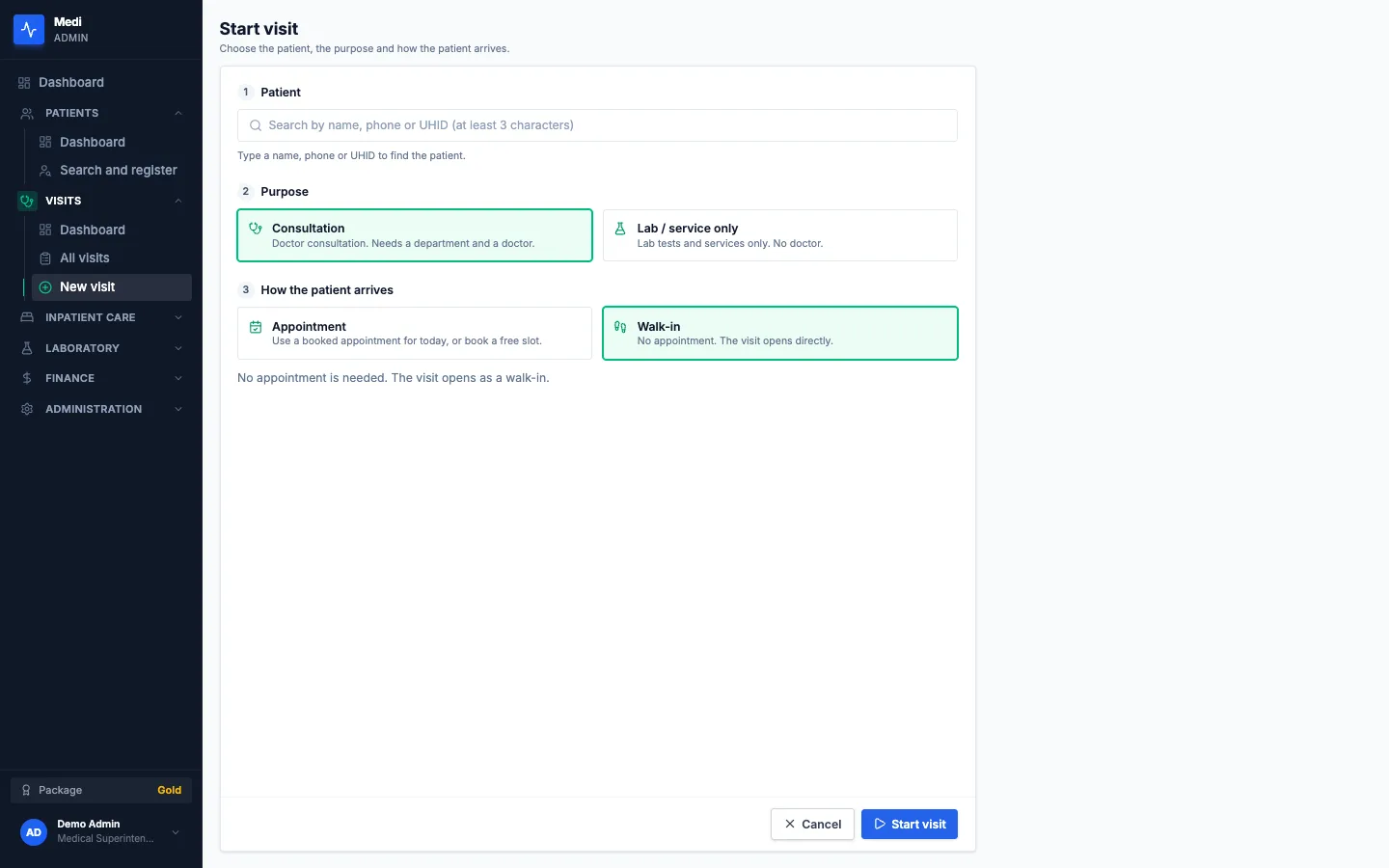
Medi Start visit screen with patient search, purpose and arrival choices
Start a visit

What you see

The page is titled Start visit, with the line Choose the patient, the purpose and how the patient arrives. A card holds three numbered sections. In Patient, a search box asks for a name, phone or UHID of at least three characters. In Purpose, two tiles sit side by side: Consultation, selected, which needs a department and a doctor, and Lab / service only, which needs no doctor. In How the patient arrives, the tiles are Appointment, to use a booked appointment or book a free slot, and Walk-in, selected, with a line saying no appointment is needed. Cancel and Start visit buttons sit at the bottom.

What you can do

  • Find the patient by name, phone or UHID.
  • Choose Consultation or Lab / service only.
  • Choose Appointment and pick one booked for today, or book a free slot, or choose Walk-in.
  • Press Start visit to open the visit.

Why it matters. How a visit starts decides which steps follow, so a doctor and a department are asked for only when they are needed.

Visits

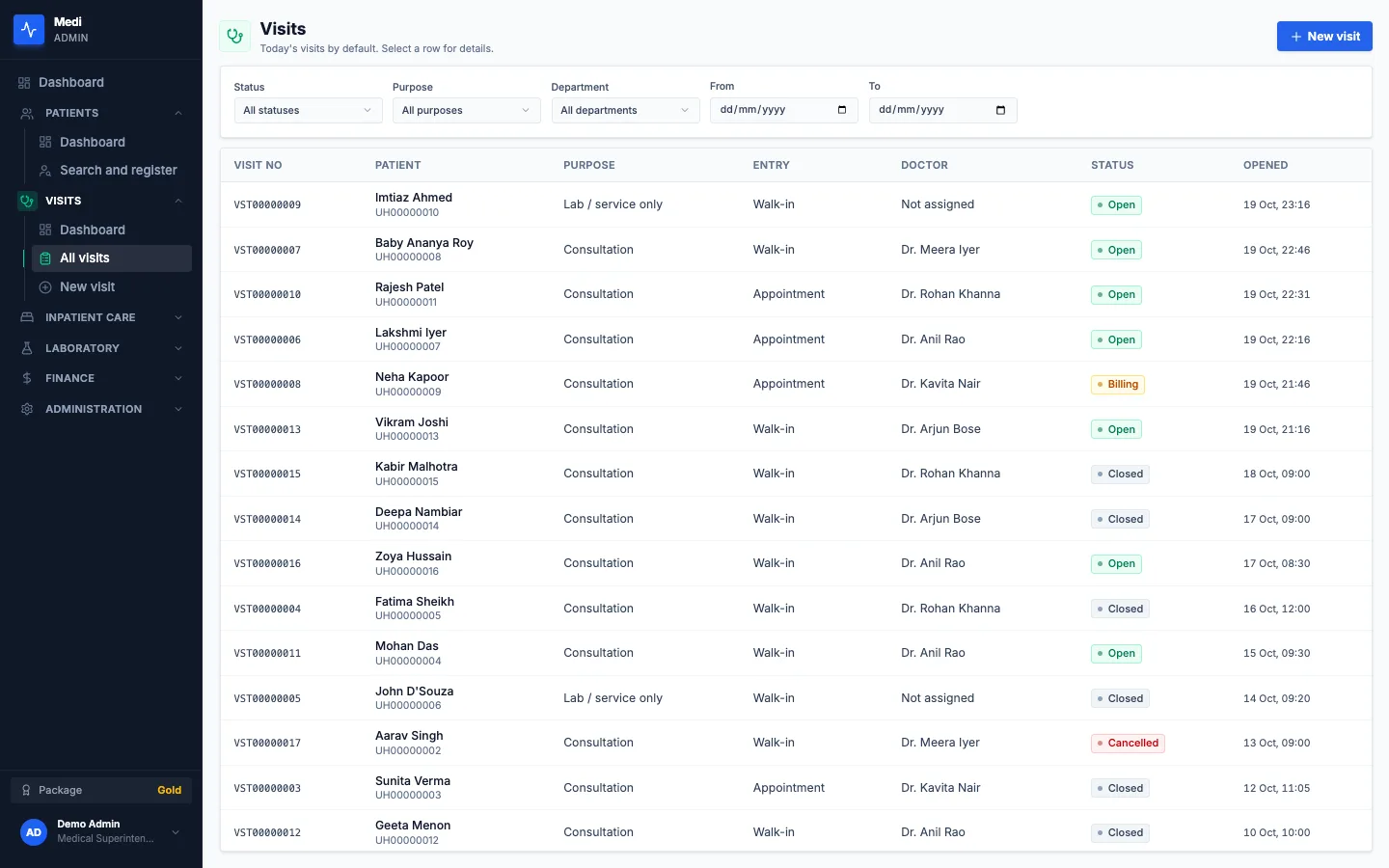
Medi Visits list with filters and the status labels Open, Billing, Closed and Cancelled
Visits

What you see

The page is titled Visits, with a blue New visit button at the top right. A filter card offers Status, Purpose and Department menus and From and To dates. Below it, a table lists each visit by visit number, patient with UHID, purpose, entry, doctor, status and opening time. The purposes are Consultation and Lab / service only, the entries are Appointment and Walk-in, and a coloured label shows the status: Open in green, Billing in amber, Closed in grey and Cancelled in red.

What you can do

  • Filter the list by status, purpose, department or dates.
  • Select a row to see the visit in a side panel and press Open visit to continue it.
  • Press New visit to start another.

Why it matters. Everyone can see which visits are still open, which have a confirmed order and which are closed, without asking around the front desk.

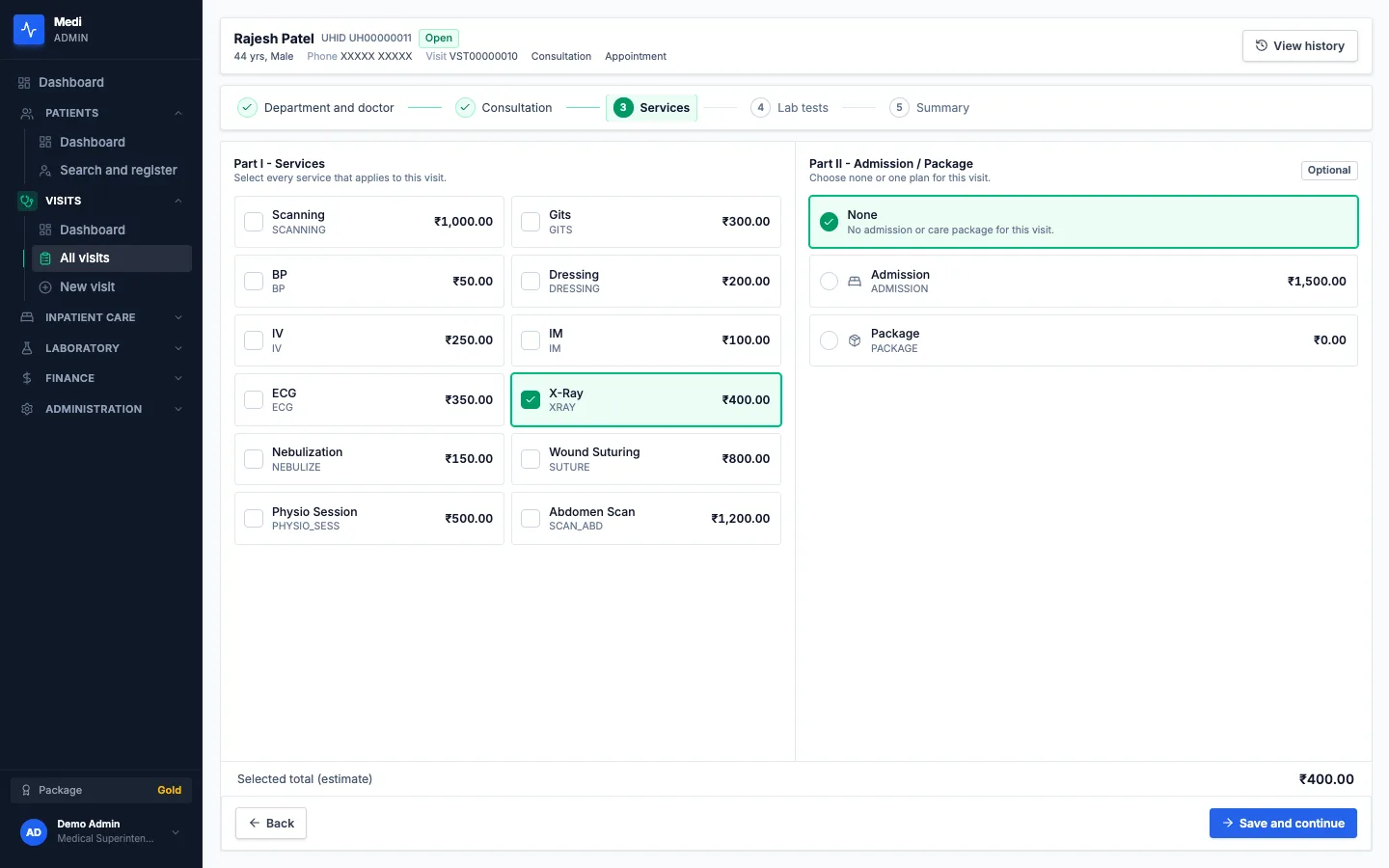
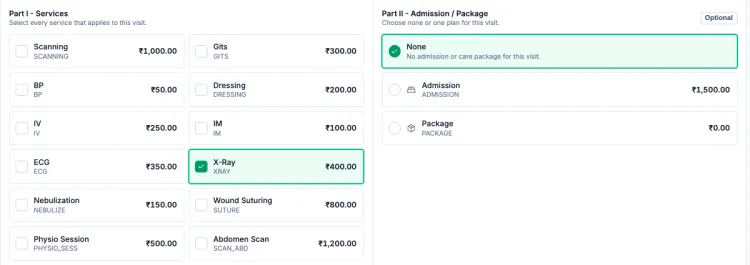
Visit: services

Medi visit services step with Part I services, the optional Part II plan and a selected total
Visit: services

What you see

A header names the patient with the UHID, an Open label, age, gender, phone (masked here), visit number and the purpose and entry, with a View history button at the right. A stepper below it has five steps: Department and doctor, Consultation, Services, Lab tests and Summary, with the first two ticked and Services active. The left panel, Part I - Services, shows a two-column grid of service tiles with a name, a code and a price, and one tile is ticked. The right panel, Part II - Admission / Package, is marked Optional and offers None, selected, Admission and Package. A footer shows the selected total (estimate) and the Back and Save and continue buttons.

What you can do

  • Tick every Part I service that applies to the visit.
  • Choose none or one Part II plan: an admission or a care package.
  • Watch the selected total change as you tick.
  • Press Save and continue to go on to the lab tests, or Back to return.

Why it matters. Services and plans are priced from the hospital's own catalog, so what is chosen here is what the order is built from.

Visit: lab tests

Medi visit lab tests step with a test list and a lab cart
Visit: lab tests

What you see

The same header and stepper stay at the top, now with Lab tests active. On the left, a search box asks for a test name or code, with an All categories menu beside it. Below, each test is a row with a flask icon, its name, its code, category, sample type and turnaround in hours, its price and an Add to cart button. A test that is already ordered shows an Ordered tick instead. On the right, a Lab cart card lists the tests chosen, each with its price and a Remove button, above a Lab total. Back and Continue to summary buttons sit at the foot.

What you can do

  • Search the test catalog by name or code, or filter by category.
  • Press Add to cart to order a test, or Remove to take it out.
  • Read the lab total before going on.
  • Press Continue to summary when the tests are chosen.

Why it matters. Tests are ordered inside the visit, so the lab receives the order without anyone copying details over.

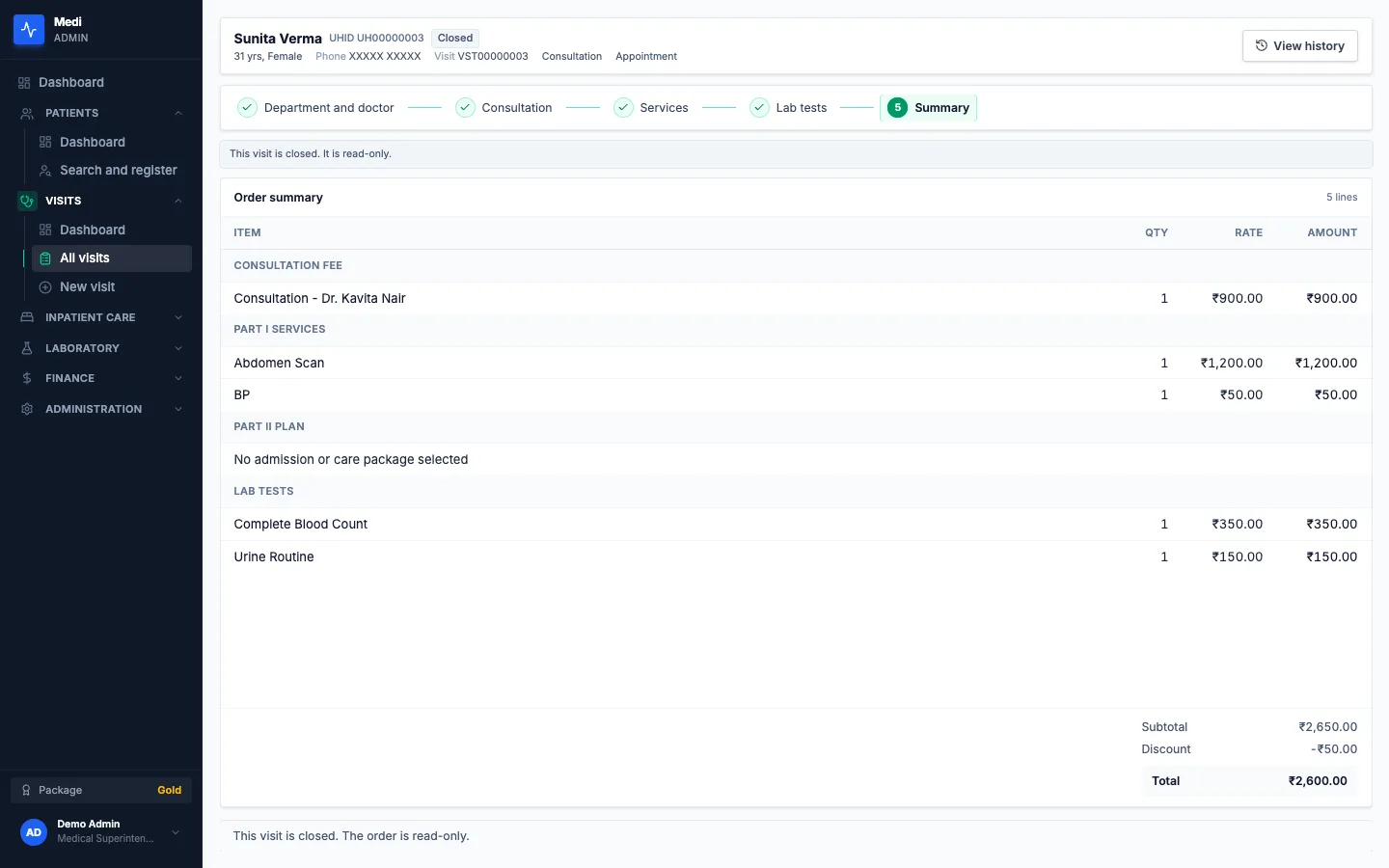
Visit: order summary

Medi visit order summary grouped by consultation fee, services, plan and lab tests, with subtotal, discount and total
Visit: order summary

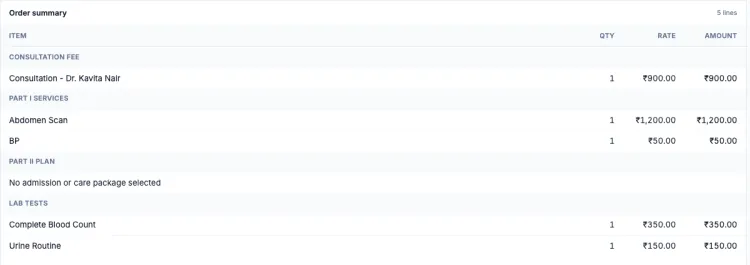
What you see

The header shows the patient and a Closed label, and the stepper shows the first four steps ticked, with Summary active. A grey bar says the visit is closed and read-only. An Order summary card shows the number of lines and a table with Item, Qty, Rate and Amount. The lines are grouped under Consultation fee, Part I services, Part II plan, where it reads that no admission or care package was selected, and Lab tests. At the foot, right-aligned, come the Subtotal, the Discount and the Total.

What you can do

  • Read the priced order grouped by consultation fee, services, plan and lab tests.
  • On an open visit, press Confirm and bill to lock the order and move the visit to Billing.
  • Reopen the order to change it, or close the visit. A closed visit is read-only.

Why it matters. Everyone sees the same priced order before a visit is closed. Invoices and payments are not part of Medi today.

Admissions

Medi Admissions list with Inpatients and Day-care tabs
Admissions

What you see

The page is titled Admissions, with the line Inpatients and day-care stays. Select a row to view and act on it. Two tabs, Inpatients, selected, and Day-care, sit at the left, with an admission number search box and a status menu at the right. A light blue note reads Showing admissions updated today, with the count and a Show all button. The table lists admission number, patient with UHID, doctor, department, ward and bed, admitted at, expected discharge and status, shown as Admitted in green or Discharged in grey.

What you can do

  • Switch between Inpatients and Day-care.
  • Search by admission number, or filter by status.
  • Select a row to open the stay, with the actions Transfer, Add note, Add service and Discharge.
  • Open Overdue day-care in the menu to find day-care stays still open past their day.

Why it matters. Ward staff and doctors see who is admitted, where and under whom, and every change to a stay starts from one row.

Lab worklist

Medi lab worklist with status tabs, filters and orders with their status
Lab worklist

What you see

The page is titled Lab worklist, with the line Collect samples and enter results for lab orders. A row of status tabs reads All, selected, Ordered, Sample collected, In progress and Resulted. A filter card has a Patient search for a name, phone or UHID, Ordered from and Ordered to dates and a Clear filters button. The table lists each order by patient with UHID, the number of tests, the time it was ordered and a coloured status. The status is shown as Ordered in grey, Sample collected in blue, In progress in amber, Resulted in green and Cancelled in red. The order and visit number columns are left out of this picture.

What you can do

  • Pick a status tab to see only the orders in that state.
  • Filter by patient or by the dates the order was placed.
  • Select an order to see its tests, then collect the sample or enter the results.

Why it matters. The lab sees what is waiting for a sample and what is waiting for a result in one list, and the order status follows the work.

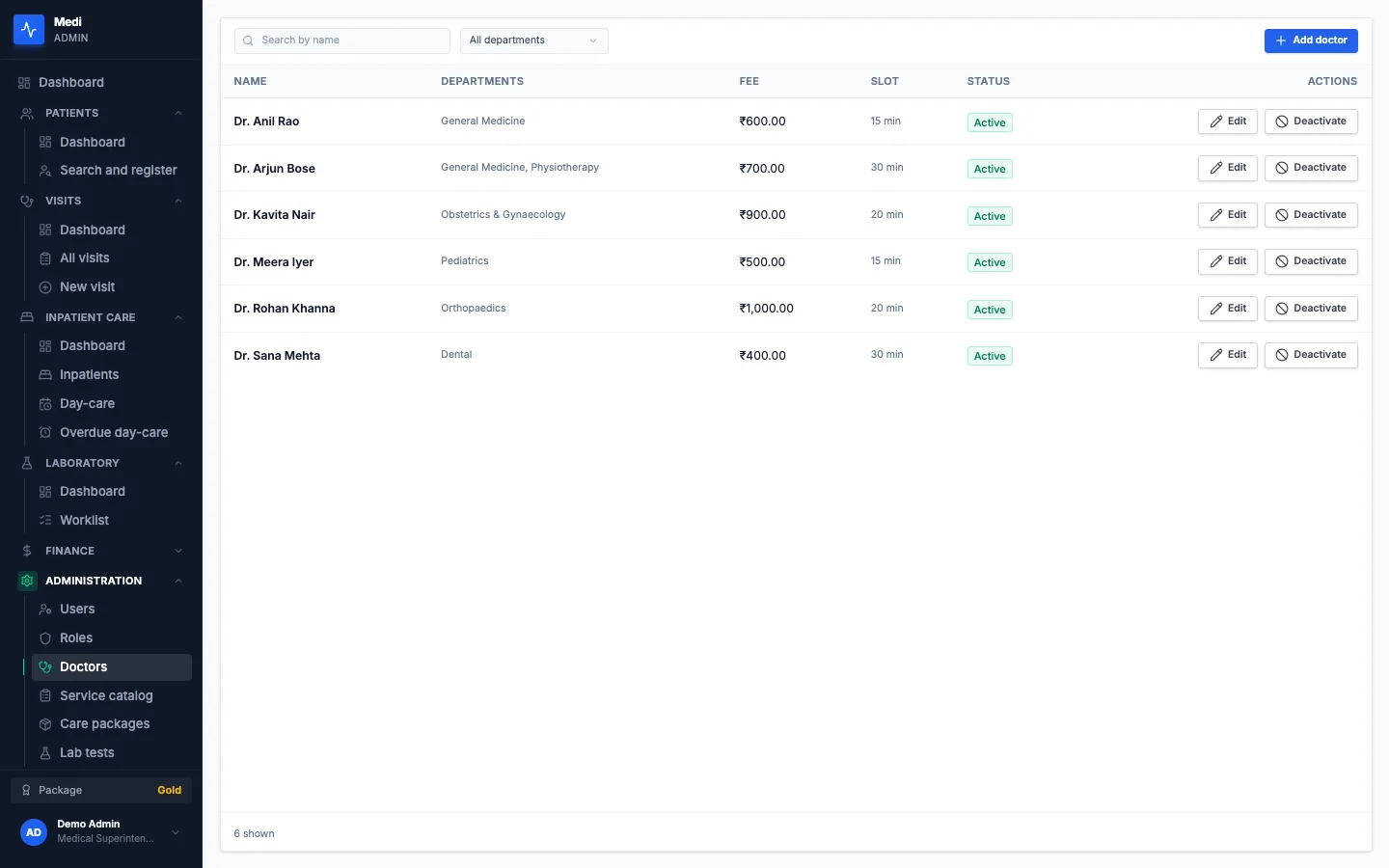
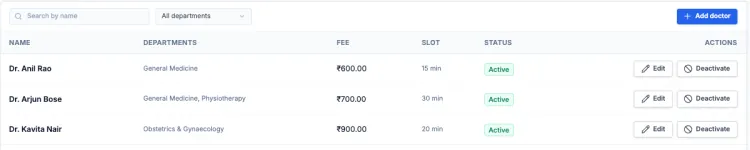
Doctors

Medi doctor directory with departments, fees and slot lengths
Doctors

What you see

A bar at the top holds a Search by name box, an All departments menu and a blue Add doctor button. Below it, a table lists each doctor by name, departments, fee, slot and status. A doctor can have one department or two, such as General Medicine and Physiotherapy. The fee is in rupees, the slot is a number of minutes, and the status is a green Active label. Each row ends with Edit and Deactivate buttons.

What you can do

  • Search by name or filter by department.
  • Add a doctor, or edit one to change departments, fee or slot length.
  • Deactivate a doctor who no longer takes visits.

Why it matters. The doctor list drives the department and doctor step of a visit, the appointment slots and the consultation fee on the order.

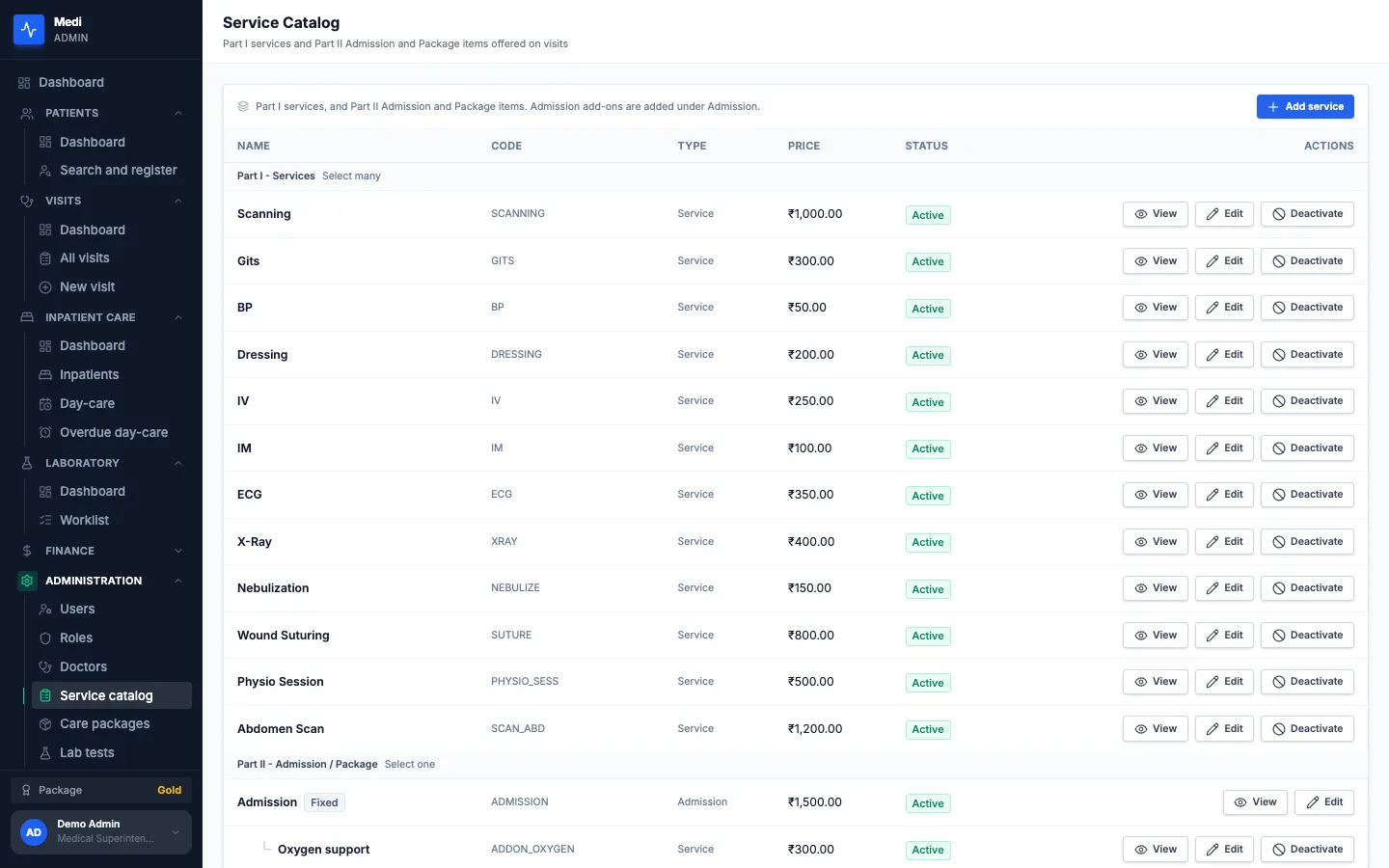
Service catalog

Medi service catalog with Part I services and Part II items with prices
Service catalog

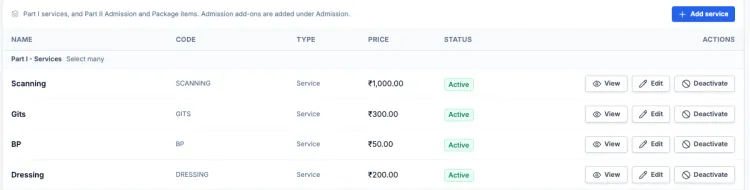
What you see

The page is titled Service Catalog, with a line about Part I services and Part II Admission and Package items offered on visits, and a blue Add service button. A table lists each item by name, code, type, price and status, with View, Edit and Deactivate buttons. A heading, Part I - Services, with the note Select many, starts the list of everyday services with their prices in rupees. Further down, a second heading, Part II - Admission / Package, with the note Select one, introduces the Admission item and its add-ons.

What you can do

  • Add a service with a name, code and price, or edit an existing one.
  • Open an item to read its details.
  • Deactivate an item so that it is no longer offered on visits.

Why it matters. Prices are set once in the catalog and used on every visit, so the front desk does not type them.

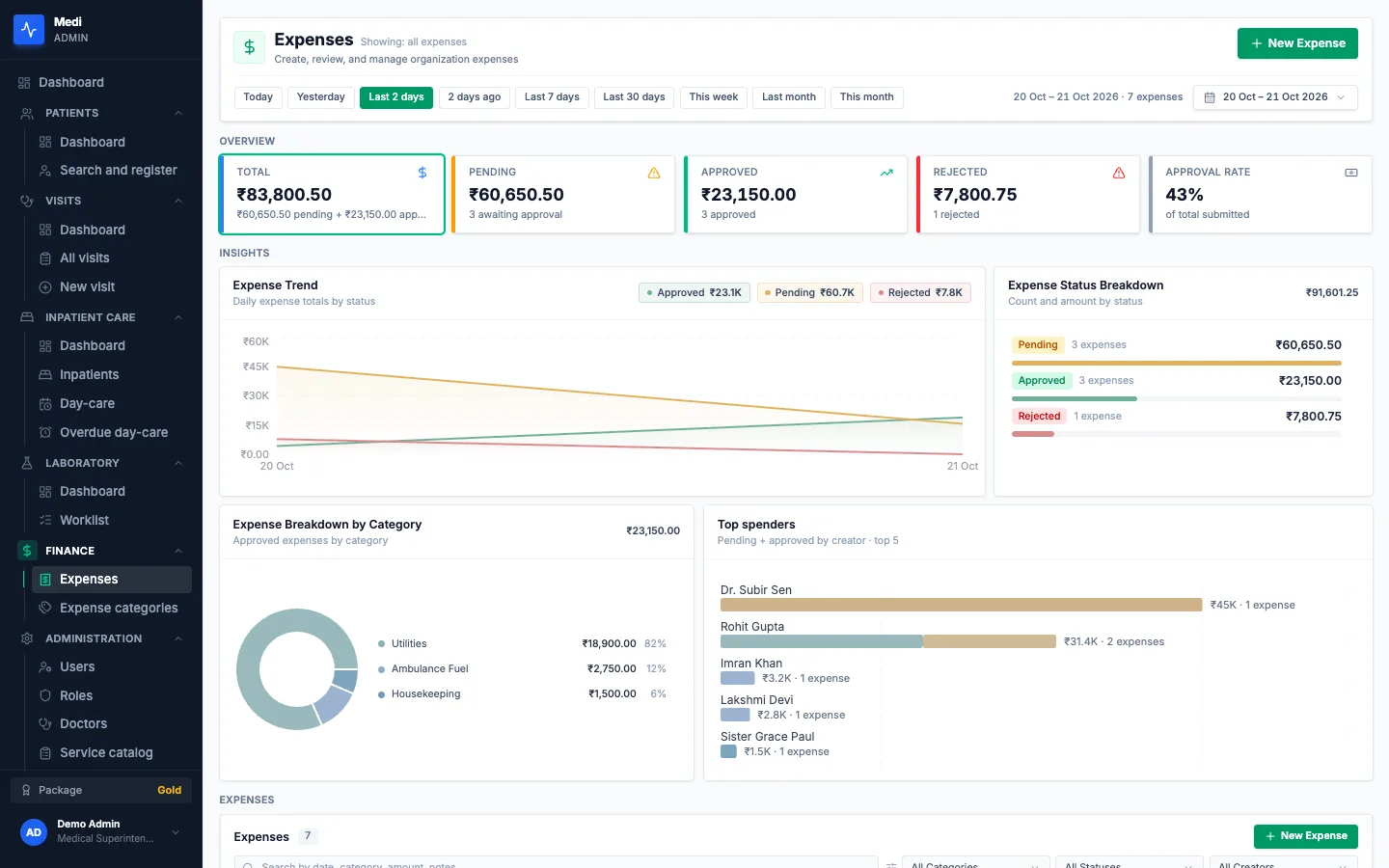
Expenses

Medi Expenses screen with totals, a trend chart, a status breakdown, a category ring and top spenders
Expenses

What you see

The page is titled Expenses, with a green New Expense button. A row of date shortcuts runs from Today and Yesterday to This month, with a date-range box at the right. An Overview strip of five cards shows Total, Pending, Approved, Rejected and Approval rate. Under Insights sit four charts: an Expense Trend line chart by status, an Expense Status Breakdown with bars for pending, approved and rejected, an Expense Breakdown by Category ring chart, and a Top spenders bar chart by the person who recorded the expense. A list of expenses starts at the bottom.

What you can do

  • Pick a date shortcut or a range to change what the totals and charts cover.
  • Press New Expense to record one with a category.
  • Open an expense to approve or reject it, if your role allows.

Why it matters. Money going out is recorded and approved in the same place as the rest of the hospital, instead of in a separate register.

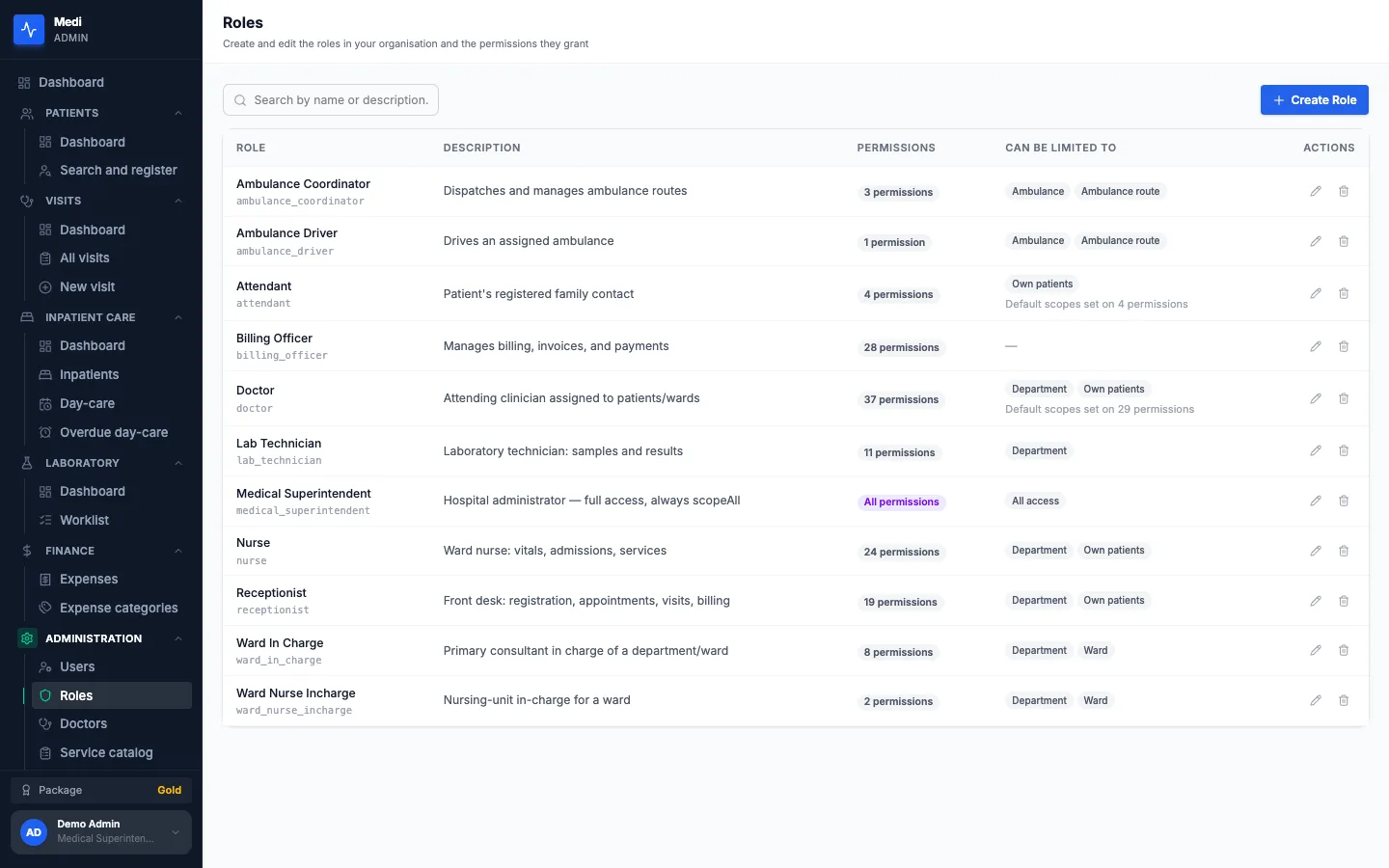
Roles

Medi Roles list with permission counts and the limits each role can have
Roles

What you see

The page is titled Roles, with the line Create and edit the roles in your organisation and the permissions they grant. A search box and a blue Create Role button sit above a table. Each role has a name and its key, a description, a permission count such as 37 permissions, or a purple All permissions for the superintendent, and a Can be limited to column with chips such as Department, Own patients, Ward or All access. Edit and delete icons end each row.

What you can do

  • Search roles by name or description.
  • Create a role, or edit one to change its permissions.
  • Open a role to read every permission it holds.

Why it matters. Roles are the hospital's own, so access can follow how the hospital actually works instead of a fixed list.

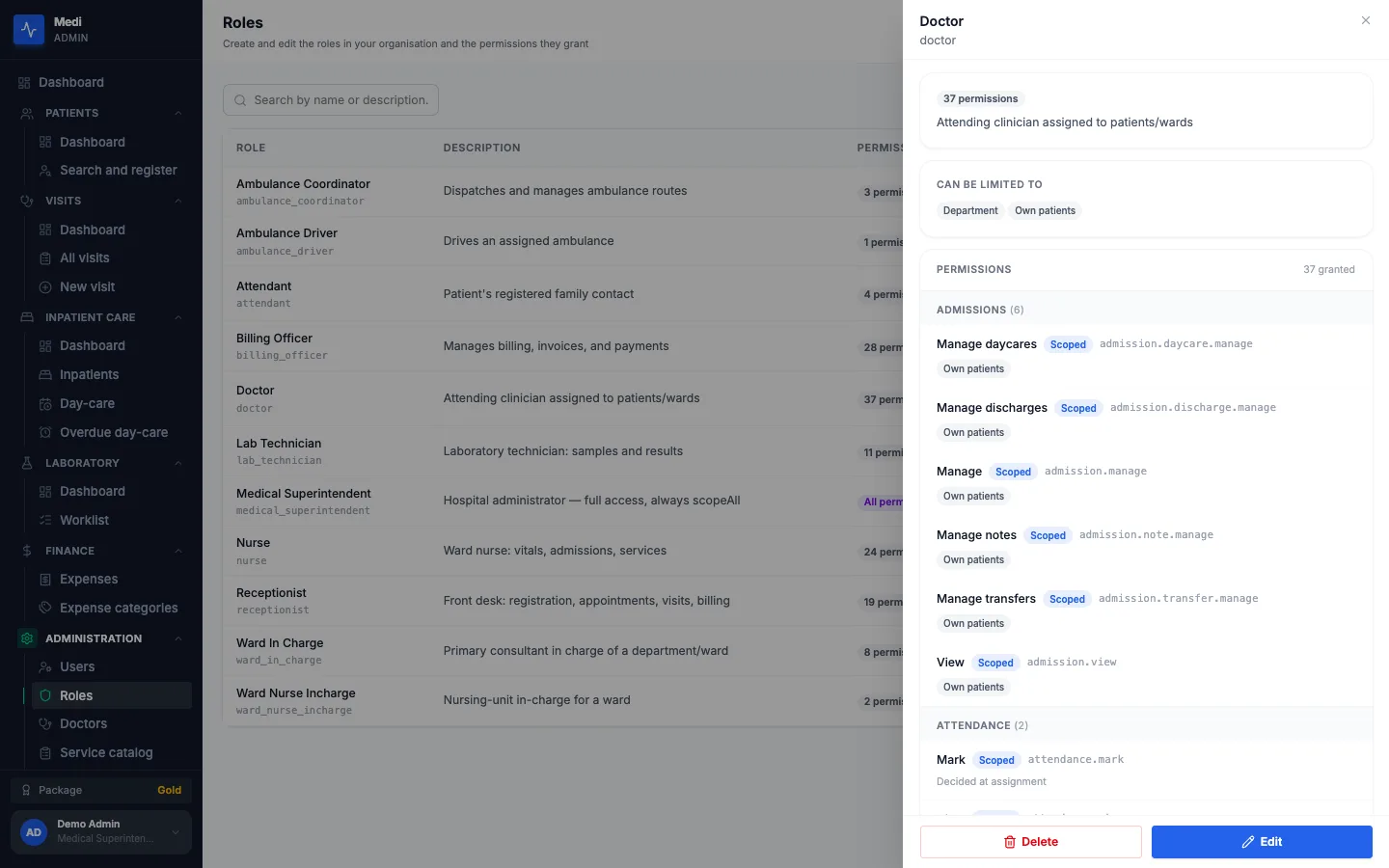
One role in detail

Medi role panel for the Doctor role, listing its permissions and what each is limited to
One role in detail

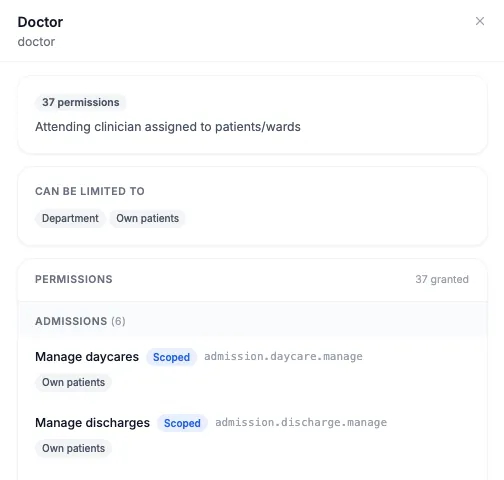
What you see

A side panel slides in over the dimmed roles list. Its title is Doctor, with the role key beneath. A card shows 37 permissions and the description Attending clinician assigned to patients/wards. A Can be limited to card shows the chips Department and Own patients. A Permissions section, 37 granted, groups them by module, starting with Admissions. Each permission has a plain name, a blue Scoped tag, its key in small type and a chip such as Own patients that says what it is limited to. Delete and Edit buttons sit at the foot.

What you can do

  • Read the permissions by module, with the scope of each one.
  • Press Edit to change what the role grants or how it can be limited.
  • Press Delete to remove a role that is no longer used.

Why it matters. A permission is limited to the records that belong to the person, such as their own patients, and not all-or-nothing.

Features

Every feature, explained.

Patients and the front desk

Registering, finding and following a patient.

  • Patients

    Register a patient once, get a hospital health ID, and find anyone by phone, UHID or name.

    Registration asks for the full name, gender, date of birth or an approximate age, a phone number, and an ID type and number. An alternate phone, email, address, blood group and a guardian name can be added. The panel issues the UHID.

    Search needs at least three characters and matches a name, a phone number or a UHID. Each result row opens the patient's history or starts a visit.

  • Patient history

    One timeline of a patient's visits, stays and lab reports, filtered by type and date.

    The history lists outpatient visits, inpatient stays, day-care stays and lab reports in one timeline, newest first, so a follow-up starts with the whole picture.

    Filters narrow it to one type and to a range of dates. The header shows the last visit and whether the patient has an active admission.

  • Appointments and walk-ins

    Book a free slot with a doctor, or open a visit for a walk-in.

    When a visit starts as an appointment, the patient's booked appointments for today can be picked, or a free slot can be booked by choosing a department and a doctor. Slot lengths come from the doctor's profile.

    A walk-in needs no appointment and opens the visit directly.

Visits and orders

How a visit runs, from the first step to a priced order.

  • Visits and consultations

    One visit flow, from department and doctor through consultation, services and lab tests to a summary.

    A visit is a consultation or a lab or service only visit. A consultation moves through five steps: department and doctor, consultation, services, lab tests and summary. A lab or service only visit skips the first two.

    A stepper at the top shows which steps are done, so a visit can be left and resumed. Visits are listed with filters for status, purpose, department and dates, and carry a status of Open, Billing, Closed or Cancelled.

  • Consultation record

    Vitals, notes, diagnoses and prescriptions, signed by the doctor.

    The doctor records blood pressure, pulse, temperature, SpO2, weight, height and respiratory rate, a free-text note, one or more diagnoses with a code (one marked primary) and prescription rows with medicine, dose, frequency, days, route and instructions.

    A consultation can be saved as a draft. After it is signed, later changes are saved as addenda with the time they were made.

  • Services and care plans

    Pick the services a visit needs and, optionally, an admission or a day-care package.

    Part I lists everyday services with their prices, and several can be selected. Part II is optional: none, an admission or a care package, never more than one.

    A running estimate shows the selected total. Choosing an admission or a package offers Admit now on the same step.

    Part I services as tiles with prices, beside the optional Part II choice of none, Admission or Package
    Services with prices, and the optional admission or care package. See the full screen
  • Order summary

    A priced order for the visit, with subtotal, discount and total.

    The summary groups the consultation fee, the Part I services, the Part II plan and the lab tests, each with quantity, rate and amount, then shows the subtotal, any discount and the total.

    Confirm and bill locks the order and moves the visit to Billing. From there the order can be reopened to change it, or the visit can be closed. A closed visit is read-only. Invoices and payment collection are not part of the panel today.

    Order summary grouped by consultation fee, Part I services, Part II plan and lab tests, each with quantity, rate and amount
    A visit's priced order, grouped by what it is for. See the full screen
  • Today-first lists

    Lists open on what changed today, with search above, and show the latest records when nothing changed.

    Search and filters sit above each list, so an older patient, visit or admission can still be found on any day.

    Patients, Visits, Inpatient care and Laboratory also have a dashboard of counts and short lists for today, such as open visits, visits in billing, current inpatients and lab orders waiting for a sample.

Admissions and day-care

Stays that last a day or longer.

  • Admissions

    Inpatient stays with ward and bed, notes, services, transfers and discharge.

    An admission starts from a visit. It records the department, the attending doctor, the reason and, for an inpatient, a ward and a bed typed in as text. Opening it shows a day-by-day timeline of vitals, notes and services.

    From the stay, Add note records a note, Add service charges a catalog item, Transfer changes the ward, bed, department or doctor with a reason, and Discharge records the discharging doctor's name, the date and time and the discharge details.

  • Day-care stays

    Same-day stays, usually under a care package, flagged Overdue if still open after the day.

    A day-care stay is admitted like any other, usually with a care package that bundles its services and sets a duration. Admissions has its own Day-care tab and an Overdue only filter for stays still open after their day.

    A day-care stay that needs to continue can be converted to an inpatient admission, with a reason.

Laboratory

From a test ordered to a result entered.

  • Lab orders

    Order tests from the catalog during a visit and follow each order on a worklist.

    Tests are chosen on the Lab tests step of a visit by name, code or category and collected in a lab cart. The worklist then shows each order by status: Ordered, Sample collected, In progress, Resulted or Cancelled.

    It can be filtered by patient and by order date, and the dashboard counts the orders waiting for a sample, in progress and resulted today.

  • Samples and results

    Mark a sample collected and enter each result with its unit, reference range and flag.

    Collect sample moves an order forward. Enter results records a value, a unit, a reference range, a flag and remarks for each test, and a note for the whole order.

    The flag is chosen by the person entering the result: Medi does not decide whether a value is normal. Resulted orders appear on the patient's history.

Doctors and the price list

The hospital's own lists.

  • Doctors and departments

    A doctor directory with departments, fees and slot lengths.

    Each doctor has one or more departments, a consultation fee and a slot length in minutes, which the visit and appointment screens use. Doctors can be added, edited and deactivated, and the list can be searched by name and filtered by department.

    A doctor whose role is limited to own patients sees those patients only.

    Doctor directory with search, a department filter, an Add doctor button and doctors with departments, fee and slot length
    Doctors with their departments, fees and slot lengths. See the full screen
  • Catalog and packages

    Services, admission add-ons, care packages and lab tests, each with a price.

    The service catalog holds the Part I services and the Part II Admission item with its add-ons. Care packages bundle Part I services for a day-care stay, with a price and a duration. Lab tests carry a code, a category, a sample type, a price and a turnaround in hours.

    Items can be added, edited and made inactive, so that they are no longer offered on visits.

    Service catalog table with name, code, type, price and status, and View, Edit and Deactivate buttons
    The service catalog, with a price and a status for every item. See the full screen

Roles, users and expenses

Who can do what, and the money that goes out.

  • Roles and permissions

    Create roles, set what each permission covers, and limit access to own patients, a department or a ward.

    A role is a named set of permissions, listed by module on the role panel. A scoped permission can be limited to own patients, a department, a ward, or specific users or patients, and the role says which limits it allows. Roles can be created, edited and deleted.

    When a user is given a role, the scope can come from the role or be narrowed for that user. If several apply, a user override wins, then the role's own scopes, then the limit set when the role was assigned. Users are managed under Administration, where each person is given roles and limits.

    Doctor role panel with its permission count, what it can be limited to, and permissions grouped by module with a Scoped tag
    One role: its permissions by module, and what each is limited to. See the full screen
  • Expenses

    Record hospital expenses by category and approve or reject them.

    Expenses are recorded with a category and start as pending, then are approved or rejected by someone with that permission. The Expenses screen shows totals, a trend, a status breakdown, a category breakdown and the top spenders for a chosen date range.

    Expense categories are managed under Finance. The first screen after signing in shows today's and this month's expenses and what needs approval.

    Five expense cards: Total, Pending, Approved, Rejected and Approval rate
    Expenses at a glance: total, pending, approved, rejected and approval rate. See the full screen

Roles and access

Who sees what.

Every user holds one or more roles, and each role holds a set of permissions. Roles can be created and edited, and a role's permissions can be limited to own patients, a department or a ward. The server checks permissions as well as the menu. Medi also lists roles for attendants, ward in-charge staff and ambulance staff, which have no screens of their own today, so they are not described here.

  • Medical superintendent (administrator)

    Full access. Holds every permission and can open every screen.

    • Opens every screen in the panel, with no limit on records.
    • Creates and edits roles, adds users and sets what each user can access.
    • Manages the doctor directory, the service catalog, care packages and lab tests.
    • Reviews and approves expenses.
  • Receptionist

    The front desk. Permissions can be limited to a department or own patients.

    • Registers and updates patients, and searches the patient list.
    • Books appointments and starts visits.
    • Adds services to a visit, manages its order and closes visits.
    • Orders lab tests and views lab orders.
    • Reads the doctor directory and the catalogs.

    Not available

    • Record or sign consultations.
    • Enter lab results.
    • Admit, transfer or discharge patients.
    • Create roles or users.
  • Doctor

    The attending clinician. Permissions are limited to own patients, and can be limited to a department.

    • Records vitals, notes, diagnoses and prescriptions, and signs the consultation.
    • Opens visits, adds services and orders lab tests for own patients.
    • Manages admissions, notes, transfers, day-care and discharges for own patients.
    • Reads patient histories, medical records and lab reports of own patients.

    Not available

    • Register new patients: profiles are view-only.
    • Enter lab results.
    • Manage roles, users or catalogs.
  • Nurse

    The ward nurse. Permissions can be limited to a department or own patients.

    • Records vitals and views consultations.
    • Manages admissions, day-care stays, notes and transfers.
    • Manages visits and their services, and orders lab tests.
    • Views patient profiles, histories and appointments.

    Not available

    • Prescribe or sign a consultation.
    • Record a discharge.
    • Register patients.
  • Lab technician

    Samples and results. Permissions can be limited to a department.

    • Views lab orders and lab reports.
    • Enters lab results.
    • Looks up patients and views visits.
    • Reads the lab test and service catalogs.

    Not available

    • Order tests.
    • Open consultations or admissions.
    • Change catalogs, users or roles.
  • Billing officer

    Orders and expenses. Not limited to a department or to own patients.

    • Views and manages visit orders, and closes visits.
    • Manages expense categories and expenses, and reads every expense dashboard.
    • Views patients, visits, admissions and lab reports.

    Not available

    • Record consultations or other clinical data.
    • Enter lab results.

On a phone, the panel adapts to the small screen and uses a bottom menu, so staff can use it from a phone browser.

Questions

Questions a hospital asks.

Does each hospital's data stay separate?

Yes. Staff sign in with a hospital ID, a username and a password, and each hospital works on its own data. Within a hospital, roles decide what each person can open.

Who can see which patients?

A role's permissions can be limited. By default a doctor's permissions are limited to their own patients, and a nurse's or a receptionist's can be limited to a department or to their own patients. The limit is set on the role and can be narrowed for one user. The server enforces it as well as the menu.

What is a UHID?

The hospital health ID given when a patient is registered. It is unique inside your hospital and is used to find the patient and to tie visits, admissions and lab orders to them. It is not a national health ID, and the ID document recorded at registration, such as an Aadhaar or PAN number, is kept as entered and is not checked against any authority.

How does a lab order get its result?

Tests are ordered inside a visit. The lab worklist then follows the order from Ordered through Sample collected and In progress to Resulted. A technician enters each value, unit, reference range and flag by hand. Medi does not interpret results.

Can I admit a patient for a day only?

Yes. Choose a care package as the Part II plan on a visit to admit the patient as day-care, or an admission for an inpatient stay. A day-care stay can be converted to an inpatient admission, and one that is still open after its day is flagged Overdue.

Does Medi handle invoices and payments?

Not yet. A visit ends with an order summary: the consultation fee, services, plan and lab tests, with a subtotal, any discount and a total. Confirming the order locks it, and the visit can then be closed. Invoices and payment collection are not part of the panel today.

Can we change doctors, prices and tests ourselves?

Yes, with the right permissions. The doctors with their departments, fees and slot lengths, the Part I services and admission add-ons, the care packages and the lab tests are all managed in the panel, and each can be made inactive.

How do we get started?

Medi is used with a hospital ID issued to your hospital. Write to us from the contact page or by email or phone, tell us about your hospital, and we will reply with a sensible first step.

Who it's for

Clinics and hospitals: superintendents, doctors, receptionists, nurses, lab technicians and the staff who track expenses.

  • Superintendents and administrators who set up users, roles and price lists.
  • Receptionists who register patients and start visits.
  • Doctors and nurses who record consultations and look after admitted patients.
  • Lab technicians who collect samples and enter results.
  • Staff who record and approve expenses.

Also from one08

The other two products.

  • Fuelti

    Fuel station management

    Run every shift, nozzle and rupee at your fuel station.

    Built for
    Fuel station owners, managers and dispensing staff.
    Platform
    Fuelti web panel
  • Biller

    Retail billing

    Billing, GST and receipts for small shops, right from your phone.

    Built for
    Small shops, kiosks and counter staff who need quick, GST-aware billing without a PC or POS terminal.
    Platform
    Android app + admin console

ContactReplies from a person

Something to build, or something to fix?

Tell us what is not working. A person on the team will reply with an honest view of scope and a sensible first step.